Updated
How to Check If a Website Is Safe to Browse

Head of Product & Co-Founder

Reviewed by Argjent Sahiti
CTO
To check if a website is safe, read the full domain in the address bar, make sure it uses HTTPS (while remembering a padlock alone proves little), and take browser warnings seriously. Before you enter personal data on an unfamiliar site, run its URL through Google Safe Browsing and look for a privacy policy, real contact details and independent reviews.
Key takeaways
- HTTPS only means the connection is encrypted. Scammers get SSL certificates too, so a padlock doesn't make a site trustworthy.
- The real domain is the part right before the first single slash after https://. yourbank.secure-login.com belongs to secure-login.com.
- If your browser shows a full-screen warning like "Deceptive site ahead", close the window instead of clicking through.
- Before entering personal data on an unfamiliar site, paste its URL into Google Safe Browsing site status to see if it's flagged.
- A site can pass every check and still share your data with data brokers, so your exposure doesn't end when you close the tab.
Scam websites have gotten far better at looking real. Some copy trusted brands pixel by pixel. Others pass every visible safety check and still harvest your data behind the scenes, so it helps to know what "safe" actually means in practice.
How to check if a website uses HTTPS
A safe website's URL starts with https:// rather than http://. The "s" stands for secure: the connection between your browser and the site is encrypted with an SSL/TLS certificate, so no one intercepting your traffic can read what you send or receive.
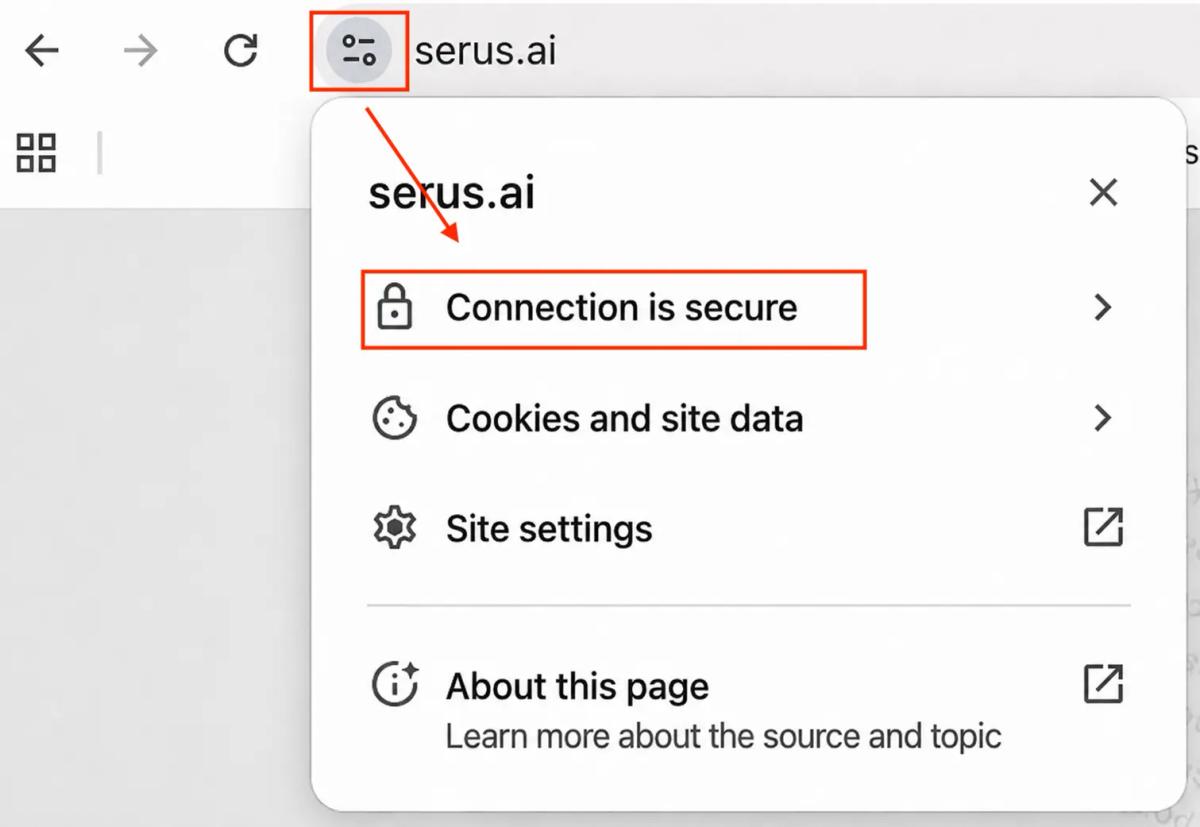
Most browsers show a padlock to the left of the URL. In Chrome, clicking it shows details about the site's certificate. Firefox shows a padlock with a warning triangle if the encryption is only partial. Newer versions of Chrome have replaced the padlock with a tune (sliders) icon. Click it to check whether the connection is secure and to see the certificate details.
 Expand
What HTTPS confirms: the data in transit is encrypted. What it doesn't confirm: that the site itself is trustworthy.
Scammers register SSL certificates too. A phishing site built to steal your login details can, and often does, have a padlock. HTTPS is a starting condition, not a final verdict.
How to tell if a website is a scam from its URL
Scam sites are built to be mistaken for real ones, the same trick phishing emails use to get you onto them. The methods are specific:
| Trick | Example | What to check |
|---|---|---|
| Typosquatting | paypa1.com instead of paypal.com | Every letter of the domain |
| Homograph attack | A Greek omicron in place of a Latin "o", identical in some fonts | Characters that look right but may come from another script |
| Subdomain trick | yourbank.secure-login.com | Which domain the name actually ends in |
| URL shortener | A short link that hides the real destination | Expand the link before you click |
Table: Common URL tricks on scam websites
Before entering any information, find the real domain. It's the part between https:// and the first single slash after it. In https://yourbank.secure-login.com/login, that's yourbank.secure-login.com, and the site is owned by secure-login.com, not your bank. Everything after that first slash is just a page on the site.
What browser warnings mean
Modern browsers do some of the work for you. If a site has a known safety issue, Chrome, Firefox, Safari and Edge interrupt your visit with a full-screen warning, usually "Your connection is not private" or "Deceptive site ahead."
If you see one, close the window. Don't click through unless you have a specific reason to trust the site and know exactly what you're doing.
Browsers can't catch everything. They miss new scam sites that haven't been flagged yet, legitimate-looking sites recently compromised by malware, and sites that collect your data without breaking any visible technical rule.
How to check if a website is legit: the deeper checks
When a glance isn't enough, these checks take a few more minutes.
Find the privacy policy
Every reputable site operating in the EU, UK, US, or most of the developed world is legally required to have a privacy policy. Look for it in the footer.
It tells you what data the site collects, how long it's kept, who it's shared with and whether it's sold to third parties. A missing privacy policy is a red flag. One written in deliberately vague language is worth noting too.
 Expand
Check third-party reviews
Search the site name with words like "reviews," "scam," or "complaints." Platforms like Trustpilot collect real customer experiences. Patterns matter more than single reviews: consistent complaints about fraud, orders never arriving or unexpected charges are meaningful.
Be skeptical in the other direction too. Hundreds of near-identical five-star reviews with no specifics may mean the rating is being manipulated. Trustpilot flags companies under investigation and removes reviews it identifies as fake, but no platform catches everything.
Look for verifiable contact information
Legitimate businesses give you a way to reach them: a real address, a working email, a customer support phone number. If none of these exist, whoever runs the site doesn't want to be contacted.
If you find contact details but still aren't sure, use them. Send an email or call. No response, or someone who has never heard of the website, is your answer.
Look closely at the design and writing
Scam sites are often built quickly. Watch for:
- Spelling mistakes and grammatical errors in the body text
- Mismatched fonts or inconsistent branding
- Broken images, or links that go nowhere
- Pages that look slightly off compared to the brand they're imitating
- Generic stock photos that feel disconnected from the content
Poor execution doesn't guarantee a scam, but it raises the bar for trust.
Be suspicious of excessive pop-ups
A cookie notice or a newsletter sign-up is normal. A site that floods you with overlapping windows, especially ones claiming you've won something or warning you about a security issue, is a different story.
Pop-ups that ask for financial information, or fake security warnings telling you to "download protection now," are either scareware or a sign of malvertising. Close the browser entirely: Alt + F4 on Windows, Command + Q on Mac.
Run the URL through a safety checker
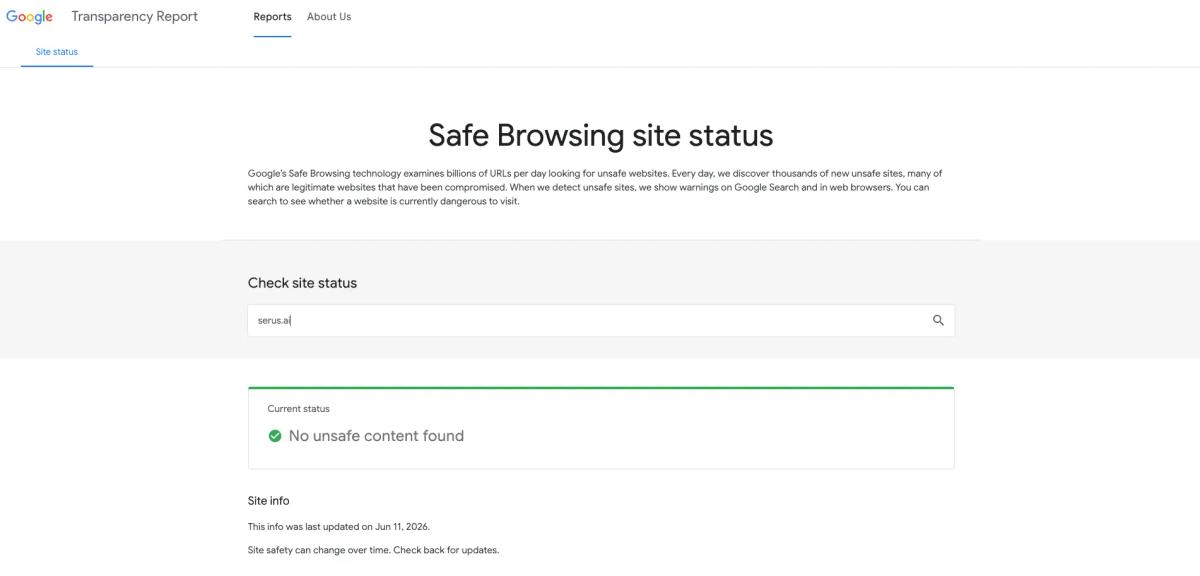
Before entering personal data on an unfamiliar site, paste the URL into Google Safe Browsing site status in Google's Transparency Report. Google says its Safe Browsing technology examines billions of URLs per day, and the check shows whether any dangerous content has been flagged.
 Expand
How to turn on your browser's security settings
Most browsers have privacy and security controls that aren't switched on by default. They take five minutes to review.
| Browser | Where to find the settings |
|---|---|
| Chrome | Settings > Privacy and security |
| Firefox | Settings > Privacy & Security |
| Edge | Settings > Privacy, search, and services |
| Safari | Settings > Privacy |
Table: Where each browser keeps its privacy and security settings
In Chrome, turn on Enhanced Safe Browsing for real-time protection against phishing. In Firefox, turn on HTTPS-Only Mode to force encrypted connections on every site.
Private browsing is a separate setting from these, so before you lean on it, check what an incognito window actually hides.
What a safe website can still do with your data
The standard checklist leaves one thing out, and it matters. A website can pass every check above and still put your data at risk, not through malware or a stolen password but through its own privacy practices.
Legitimate sites collect your email, browsing behavior, purchase history and IP address. Many sell or license this data to data brokers, who combine it into detailed profiles and sell them on. This is legal in most places, it happens at scale, and it happens on sites you trust.
The result: your name, email address, phone number and location end up in data broker databases, and from there with people running targeted scams. A site being safe to browse doesn't mean your exposure ends when you close the tab.
So the full picture of website safety includes what happens after you leave: where your data surfaces, and getting it taken down where you can. You can do that by hand, one data broker opt-out at a time.
Or let Serus do it. Serus finds the data brokers and people-search sites that hold your data where you live and removes you from them, then keeps watching. It also monitors the dark web and breach databases and alerts you when your data shows up there, with steps for what to do next.
 Expand
Questions
How to tell if a website is a scam?
Look for a combination of signals: a slightly misspelled domain, no privacy policy, no verifiable contact information, aggressive pop-ups, and reviews that are either full of complaints or suspiciously generic. One red flag may be explainable, several together are a strong sign. Run the URL through Google Safe Browsing before entering any personal information.
Does a padlock mean a website is safe?
No. The padlock means the connection is encrypted with an SSL/TLS certificate, but scammers register certificates too. Treat HTTPS as a starting condition, not a final verdict.
How do you know if a website is secure to buy from?
Check that it uses HTTPS, then look past the padlock. Search the site name with "reviews" or "scam", watch for consistent complaints about fraud, orders not arriving or unexpected charges, and make sure there's a real address, email and phone number.
What should I do if a website floods me with pop-ups?
If pop-ups ask for financial information or show fake security warnings telling you to download protection, close the browser entirely. Use Alt + F4 on Windows or Command + Q on Mac.
How to find out if a website is legit?
Search the company name with the word "reviews" or "scam" and look for it on Trustpilot. Check for a privacy policy and real contact details, then use them: no response, or someone who has never heard of the site, is a bad sign.

Author
Anthon WanslandHead of Product & Co-Founder
Shapes the Serus product — from the first address-removal service to the platform it is today.

Reviewed by
Argjent Sahiti